
Herdr GPUI: Setup and
Workflow Guide for Coding Agents
Herdr GPUI is an independent desktop client for a separately installed Herdr daemon. Learn how to install both components, connect your coding agent, and organize local, parallel, and remote workflows.
SAME MACHINES. MORE MINDS.
Working…
Idle
Blocked
There are three separate pieces to understand. Herdr manages terminal processes and session state. The native client provides a desktop interface. Your coding agent performs the development work using its own installation, account, and configuration.
GPUI is the Rust UI framework used to build the client, not an AI model or provider. Knowing this distinction helps you identify which component needs attention when something fails. This site and the desktop project are independent of Herdr.
Read the Herdr concepts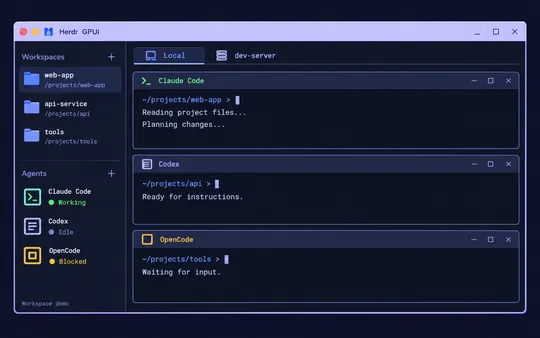
The desktop interface displays terminal sessions and agent activity from the Herdr daemon. Your installed agent still does the coding work. Use the client repository for releases and technical documentation, and this guide to plan the setup sequence.
View the client repositoryInstall the daemon first, then the desktop client separately. The commands below set up Herdr on your operating system and launch its terminal interface. Installing the GUI does not install or upgrade the daemon. Keep track of each installation method so you can update the right component later.
$ brew install herdr
$ herdrNative client on macOS
With Homebrew available and macOS 14.2 or newer, install and open the native client using these additional commands. Confirm that the herdr command is available before diagnosing a desktop connection problem.
brew install penso/tap/herdr-gpui
open -a HerdrLinux and Windows client builds are experimental. Choose a release for your system and architecture, then check its current requirements and limitations. The availability of a download does not mean every desktop feature has equal support across platforms.
Client downloads and platform requirements- 1
Prepare a small project
Choose a repository you understand and a task with a clear result, such as explaining one module. Avoid making your first experiment a large change across an unfamiliar codebase.
- 2
Open a workspace
Run herdr from your project directory. Workspaces group projects, tabs organize related views, and panes hold terminal processes. Use descriptive names to identify each project and task.
- 3
Run one installed agent
Start Claude Code, Codex, OpenCode, or Pi inside a pane after configuring its own authentication. Confirm that it starts successfully and can access the intended project before expanding your layout.
- 4
Review, then add panes
Inspect the first response and resulting changes. Use the quick-start guide for pane splitting and workspace navigation. A working single-agent session gives you a useful baseline for troubleshooting later.
Herdr runs in an existing terminal; GPUI adds a separate desktop client. Compare the interface, platform requirements, remote access, and session behavior against a workflow you can verify: open a project, run an agent, inspect a change, and reconnect.
Start parallel work with independent tasks and explicit ownership. For example, one agent can investigate a failing test while another explains the affected module. Combine their findings before authorizing overlapping edits. If both agents need to change files, consider separate Git worktrees, with a different branch and working directory for each task.
Separate panes alone do not isolate files: two terminals can point at the same checkout. Write down the scope, expected output, and verification step for each task. A useful instruction is: investigate the failing test, identify the cause, and report a proposed fix before editing. Another task can update documentation in a separate checkout.
Review each result before combining changes. More visible sessions can help you monitor work, but the layout itself does not guarantee correctness, safe merges, or faster delivery. Increase concurrency only when the tasks are sufficiently independent and you have time to inspect the outputs.
Herdr reports agent states such as working, blocked, done, and idle. These signals help you decide where to look next, especially with several projects open. Treat status as a navigation aid: when an agent is blocked, open its terminal and read the request.
When it reports completion, inspect the changes and the checks it ran before considering the task finished. State detection and integrations vary by agent. If a state looks wrong, check the terminal output and integration setup rather than assuming the underlying work has stopped.
Establish a working local session before adding a remote machine. Verify ordinary SSH access and check that the remote environment has the daemon, project files, agent CLI, and authentication needed for the task. Each machine keeps its own runtime and processes; connecting it does not automatically copy your local repository, tools, or accounts.
The native client documents saved SSH hosts, but its platform limitations differ from Herdr's terminal interface. Follow the client's current requirements instead of assuming every daemon feature is available through every frontend. Begin with a read-only task, and confirm the host and working directory before allowing edits.
Herdr distinguishes detaching a client from stopping its server. During a normal detach, terminal processes can continue running in the background. A server or machine restart is different: the original processes do not survive. Session restoration may recover the layout and resume supported agent conversations, but it does not checkpoint every running program.
Check the session-state documentation before relying on a recovery behavior. For long tasks, keep changes in version control and save meaningful progress. After reconnecting, inspect the terminal and repository state before starting another copy of the same job.
When the desktop app cannot find Herdr, first check whether the daemon is installed and discoverable. Reinstalling your coding agent is unlikely to help a missing-daemon problem. When the terminal connects but an agent will not start, test its command separately and review its own authentication or configuration errors.
When only a remote device fails, verify SSH access before changing unrelated local settings. For display problems, distinguish native-client preferences from shared Herdr settings. Persistent GUI overrides belong in config-gpui.local.toml; config-gpui.toml contains managed defaults that can be replaced. Consult the client documentation before editing either file.
Record your operating system, client version, daemon version, failing action, and exact error when asking for help. Remove credentials from copied logs. A precise description lets you isolate network, runtime, agent, and display issues instead of treating the entire setup as one failure.
Continue with a focused installation guide, a practical plan for separate agent checkouts, or a connection checklist. Each guide builds on this overview rather than repeating it. Keep upstream documentation nearby when checking release-specific behavior.
Is Herdr GPUI an official Herdr application?
No. The client repository explicitly describes it as an unaffiliated project, not endorsed or supported by Herdr. This website is also an independent guide. Use the upstream projects for authoritative release and support information.
Do I need an AI account to use the interface?
Account and model requirements depend on the coding agent you run. Installing Herdr or its native client does not supply model access or configure an agent's credentials. Set up the agent separately and verify that its command works.
Should I start with several agents?
Begin with one working session and inspect its output. Add parallel tasks when you can define independent scopes and review the results. Multiple panes alone do not isolate files or guarantee safe changes.
Are the workspace images live sessions?
No. The illustrations explain the workflow; they are not screenshots of agents running in your browser. Installing and running the software happens on your own machine. The setup builder only prepares steps for you to review and copy.